Start with Connected Worker.
Expand to Full MES.
Unlike standalone connected worker tools, TrakSYS provides a working operational solution from day one—built on a full Manufacturing Execution System (MES). Start with immediate value and expand when you’re ready, without adding new systems or integrations.
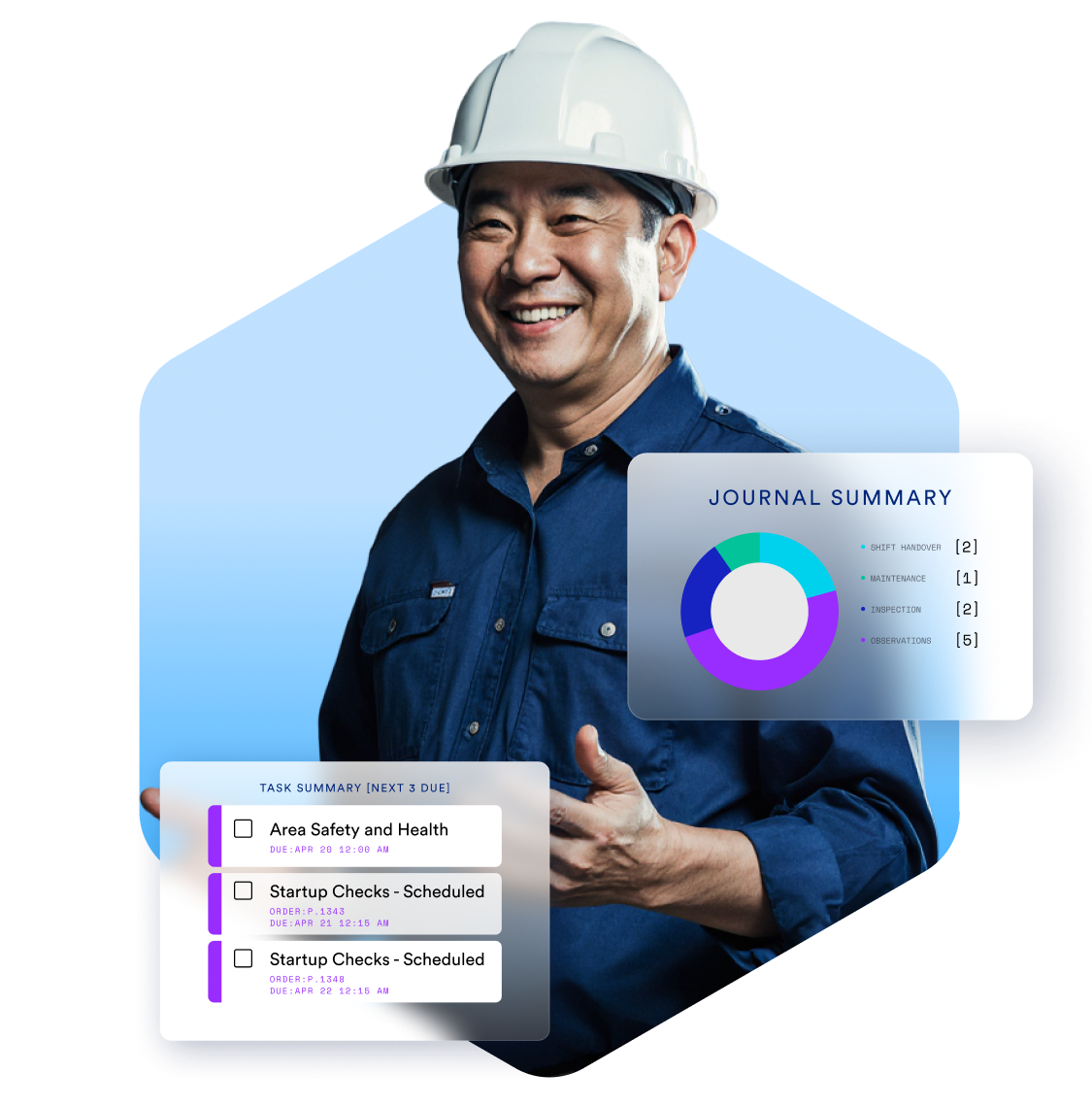
Not Just a Connected Worker Tool—
A Foundation for MES
Most connected worker solutions are designed to solve a single problem: digitizing frontline tasks.
TrakSYS takes a different approach.
Connected Worker is not a separate application—it’s built directly into the TrakSYS MES platform. That means every workflow, task, and data point is part of a broader operational system designed to scale with your business.
No replatforming. No additional systems. Just expand when you’re ready.
Start with What Matters Most
TrakSYS Connected Worker is designed to improve how work gets done on the factory floor—without unnecessary complexity.
Every capability is connected to your broader production environment, ensuring that frontline actions are tied directly to operational outcomes.


A Connected Workforce, Built on a Proven MES Platform
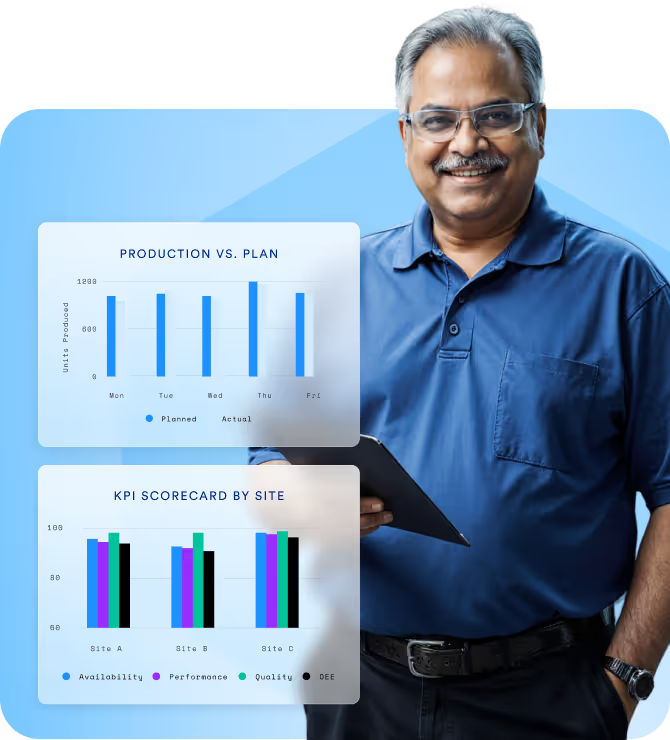
TrakSYS is an award-winning Manufacturing Execution System trusted by global manufacturers to manage and optimize production operations.
By embedding Connected Worker capabilities directly into TrakSYS, Parsec enables organizations to move beyond visibility and into execution—connecting people, processes, and systems across the factory floor.
Watch: Connected Worker Webinar
If you're evaluating connected worker platforms — or building internal alignment for the investment — this is the fastest way to get everyone on the same page. Real product, real use cases, real questions answered.
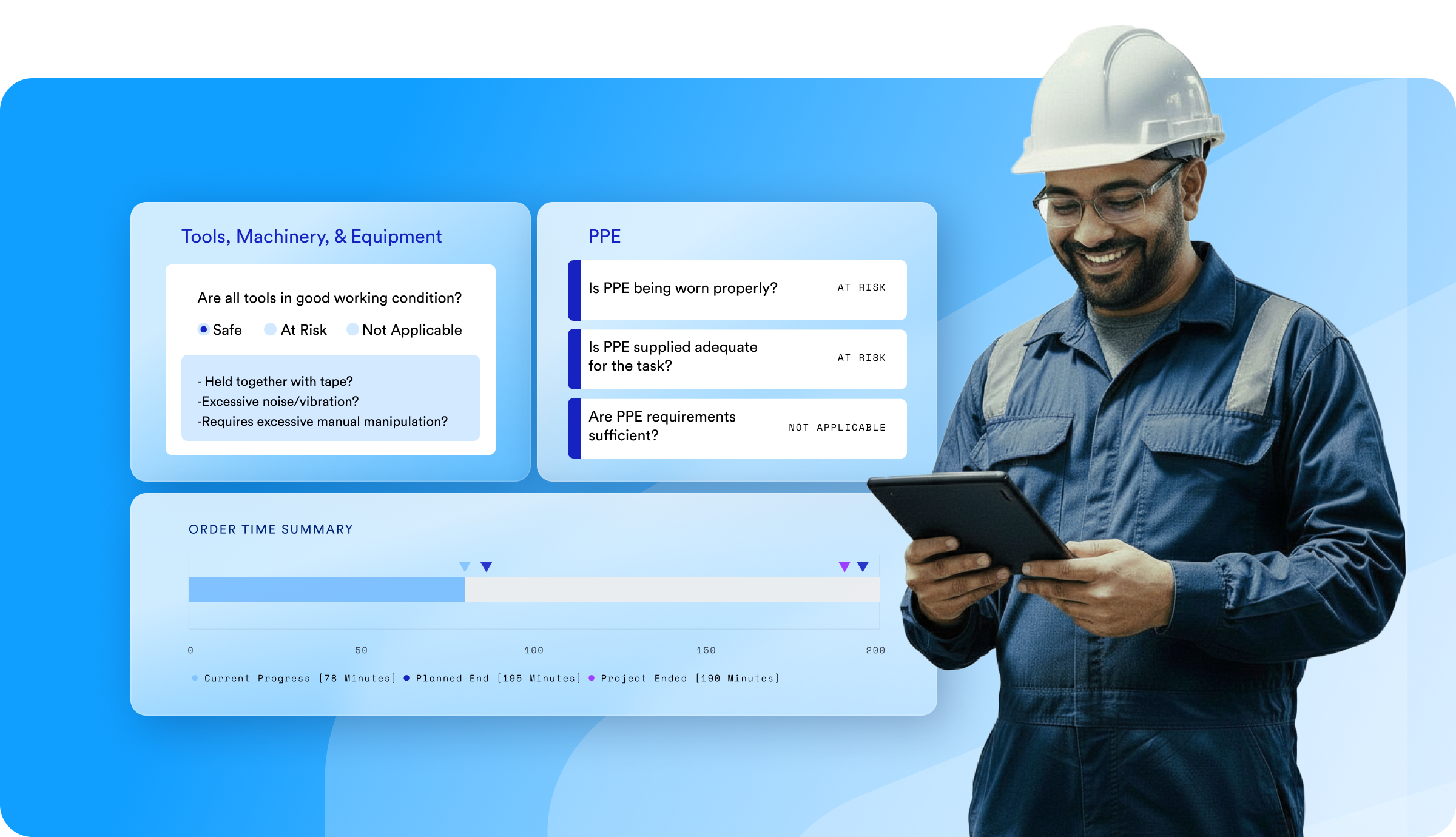
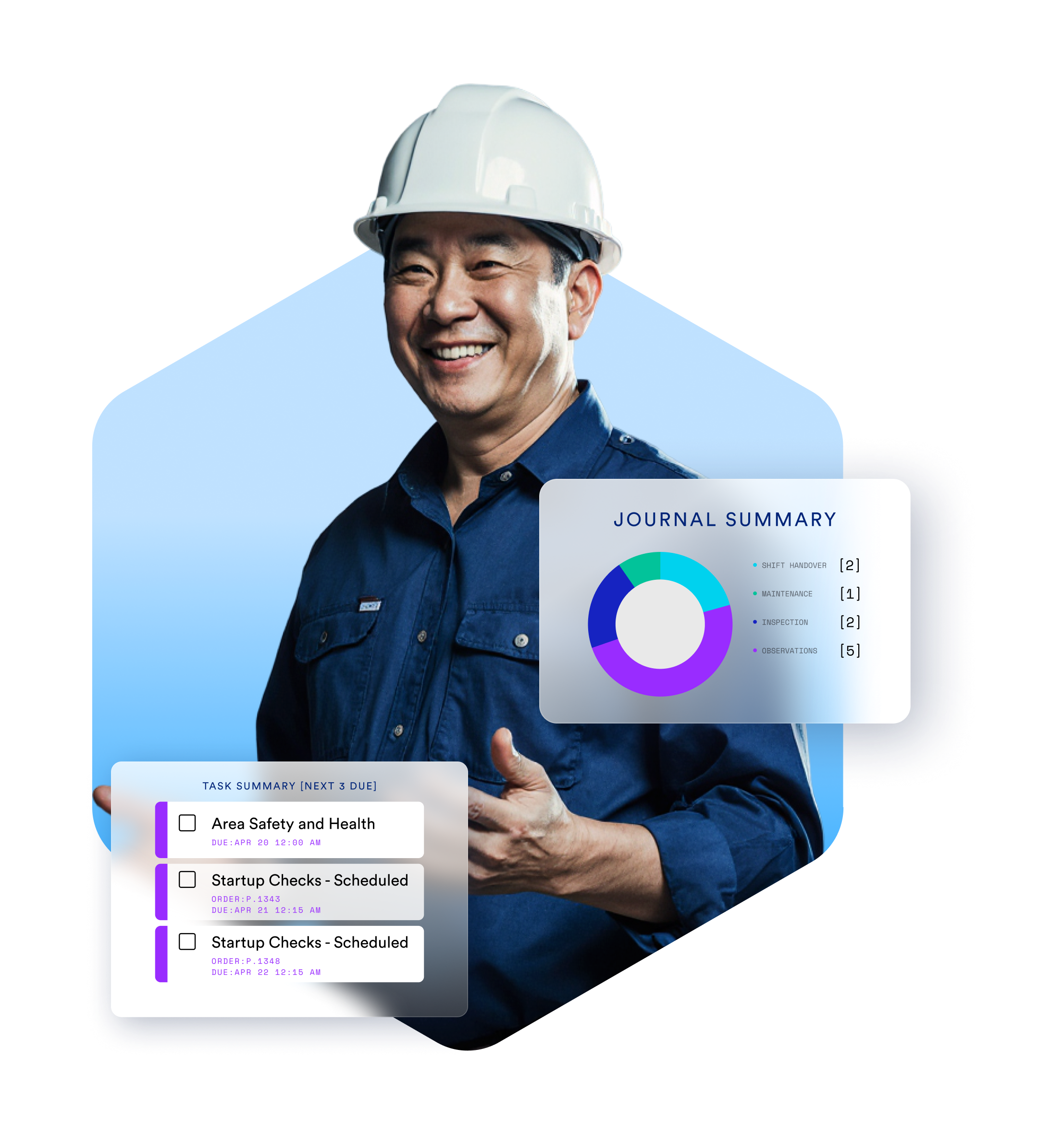
Hi, everyone. Thanks for joining us. I'm Tyler Scott. I work closely with manufacturers who are evaluating TrakSYS and trying to move faster towards workforce digitization and operational excellence. I'll be your host for today. A couple quick notes before we jump in. This session is being recorded, so we'll get the replay afterward. If questions do come up, please drop them in the q and a as we go. We'll be tracking those questions, and we'll reply to them in the chat as we have time. Any questions we don't get to, we'll be followed up with afterwards. Alright. And with that, let's get into it. Joining me today are Bill Rokos, our CTO, and Ryan McMartin, who leads product marketing. They'll be walking you through the vision behind TrakSYS Connected Worker and sharing practical use cases with you. Bill, I'll hand it over to you to start us off. Alright. Thanks, Tyler. Hi, everyone. Bill Rokos, CTO at Parsec. I'm very excited to be talking to you and presenting the vision behind our Connected Workers solution. So with that, let's get to it. All right, I wanna start by grounding us in what we consistently see across manufacturers. Most organizations don't struggle to define work. They have SOPs, they have systems, they have processes in place. The real challenge is execution. Execution is typically where things break down. Work's happening across paper, whiteboards, all sorts of disconnected application. And most importantly, it's disconnected from what's actually happening on the shop floor. So while the plan may be clear, the reality is that execution becomes inconsistent, reactive, and hard to manage at scale. That's what we call the execution gap, the difference between how work is designed and how it actually gets done. All right, now the industry has recognized this problem and that's where the Connected Workers solutions come in. To be clear, these tools solve only part of the problem. They've done a great job of digitizing tasks, checklists, and work instructions, but they stop a little short. Most of these solutions are still standalone tools. They're not connected to proceed production systems. They don't operate on real time data and they introduce yet another layer of technology into the environment to maintain. So instead of solving the execution problem, they often just digitize it and you end up with digital checklists but not true operational execution. So what we're seeing now is a shift in how leading manufacturers think about this. The conversations moving from task management to execution systems. And what that means is work should no longer be static. It should be event driven triggered by what's actually happening in operations. It should be contextual, connected to production data, machine states, and quality events. It should be part of a connected system, not another disconnected tool. Because ultimately execution sits at the intersection of people, process, and real time data. If those three things aren't connected, you're always gonna have gaps. So the natural question is why is this becoming so important right now? There are a few key drivers. First, manufacturers have already have a significant amount of operational data through MES, automation systems, and digital initiatives. But that data isn't always connected to the people executing the work. Second, there's an increasing pressure on the workforce, whether that's labor shortages, training challenges, or the need to standardize across sites. And third, there's growing expectation for faster time to value. Organizations don't wanna spend months or years building solutions from scratch. They want something they can deploy quickly and evolve over time. And finally, as AI becomes more relevant in manufacturing, it depends on structured contextual data, which only comes from connecting execution to operations. So all of these factors are converging at once now, and that's what makes this a now problem and not a future one. So if you bring all of that together, the execution gap, the limitation of current tools, and the need for something more connected, this is where TrakSYS comes in. TrakSYS Connected Worker is how you operationalize execution. Instead of managing static tasks, work is triggered dynamically based on what's happening in your operation, machine states, downtime events, production changes, all of that. And because this is built directly into the MES platform, every task carries full operational context. Operators aren't switching systems or reacting after the fact. They're working in real time with full visibility into what led to that action. And this is really the key point. It's not just about completing tasks. It's about executing work in a way that's directly connected to performance. That's what closes the gap between planning and execution. Now there's one more important concept I wanna cover, and that's how actions actually get triggered inside this solution because this isn't just a system where you log in and see a static list of tasks. TrakSYS Connected Worker is event driven. What that means is tasks can be created dynamically based on what's happening inside your operation. In addition to triggering actions based on things like the start of a production order or shift change, using automation inputs, it can also react to conditions such as machine state or quality parameter set points. Of course, data sources through traditional protocols such as OPC UA and MQTT are fully supported, But for many situations, a lighter touch may be just the thing, and that is where TrakSYS smart devices come in. These edge connected data collection devices give you a very simple way to start capturing shop floor data directly from your equipment. So instead of relying on complex integrations to provide the triggering actions, you can install pre configured edge devices to start streaming equipment data directly into the TrakSYS Connected Worker solution. All right, so there's another challenge we see manufacturers facing, and it's often a trade off between speed and scalability. On one side, you have point solutions. They're quick to deploy, but over time, they create silos and often need to be replaced or integrated as requirements grow. On the other side, you have traditional MES platforms. They offer broad capability, but they can take longer to implement, especially if you're starting from scratch. What we've done with TrakSYS Connected Worker is bridge that gap. You can start with ready to deploy solution, preconfigured workflows that allow you to operationalize execution very quickly, but you're doing that on top of the TrakSYS MES platform. So as your needs evolve, you're not replacing systems or stitching together new tools. You're expanding into quality, maintenance, production, and beyond on the same foundational platform. That's what allows organizations to move quickly today while still building towards a long term digital strategy. So not only are we evolving the execution gap, we're doing it in a way that allows you to start quickly and scale over time. What that looks like in practice is best understood in a real world scenario. So with that, I'm gonna hand it over to Ryan to walk you through a demo of the Connected Worker solution. All right, thanks a lot, Bill. Yes. I'm Ryan McMartin. I'm the product marketing director here at Parsec. And like Bill said, I'm gonna take you on a walkthrough of the connected worker solution. We'll do a day in the life scenario, and I'll walk you through all that Connected Worker has to offer. And then secondly, I'm gonna walk you through managing that solution, and then extending that solution as more needs arise in the organization. And so you'll see you'll see what that looks like. So with that, let's get into it. Okay. So like I said, I'm an operator. I come into my plant in the morning and I can visualize kind of what's happening in my facility, in my area, or the line I'm assigned to in a few different ways. One of the ways is this really nice graphic showing my whole production facility. I'm seeing non production areas. I'm seeing production areas like batching and tableting and packaging. Some of the indicators here are the cells or the lines that are that are running production orders. And so I see a lot of green here. That means that these lines are running, actively running. And I see I know I'm assigned to PAC one. I see that there's some tasks on PAC one that are overdue. That's okay. We'll check those out in a moment. I do wanna click on just, if I'm jumping into packaging. Another way to visualize this, from a different kind of level is looking at the area. So I'll jump into packaging. And what I can see in this view, as I scroll down, it shows me a list of all the systems, In this case, all the lines that are running in packaging. Shows me the orders that are running, showing me some of the, performance metrics that are occurring on these lines. And so I get a nice overview of what's happening happening on these lines. I'll jump back to the site view for a second, and we will jump into, the the line. And so I'm just gonna click on pack one. It's gonna bring me down to that packaging level. And and this is where I get to see an overview, a detailed overview of what's going on, on on that line. And so let me kinda orient you here. On the left hand side, and and you'll see this in a lot of different screens that I'm gonna show today, is that you're going to see the order details. What's currently running on the line, what's not running on the line, right? The quantity, the product, that sort of information. We're seeing some order time summary at the top here shows how far into the order we are at the moment, where we plan on getting to, how long till the order end. We saw this in that graphic at the start that, you know, we're seeing some tasks that are due on the line. Now I'm looking at this, and we can jump in. We'll jump into these tasks in a second. We'll see kinda what's overdue and and why. I'll just kinda keep going down here. At the bottom here, we see a summary of journal entries. Now I've just started my shift. Right? I'm on I'm on day shift. Looking at the previous overtime shift, we see that there's been some inspections done, some, couple shift handover reports, and then some observations, which we'll dive into, which we'll dive into in a second. So first of all, let's just check this these tasks out. Let's just go into the details here, then we'll kinda, begin our day. So I'll jump over to task details. It looks like there's a couple tasks that are assigned to this line. They are area safety and health assessment tasks. And it looks like, oh great, it's assigned to my supervisor. So I'm gonna let I'm gonna let them deal with that. It looks like one of these tasks fires off these these task forms fires off every day. So I'm not going to worry too much about that right now. We'll come back to tasks in a bit. But now I know that, hey, look, these are not assigned to me. I can I can kinda move on? So let's go back to the overview. And what I wanna do, I'm I'm coming in. I'm starting my day. I want to review what happened on the line previously. Right? I wanna review the journal entries from the last shift and make sure I'm okay. I'm kinda up to speed on what's going on. You know, I know there's an order running. It's probably close to ending. But let's go review the let's go review the entries for the last shift. Alright. So I can easily just click on that. I can also navigate over on the left hand side to journals. And what I get here is really a conversation, a thread of conversations that have happened over the last shift that have context of what orders were running on the last shift, what time it was, obviously, who entered the entry. Journals and TrakSYS are a really great way to retain the memory, retain the observations that happened over this shift. You'll see that you know, you can kind of scroll down the page and see all the observations over time that have happened. Some nice features of journaling is that you can reply to journal entries here. You see that I have a I have a example entry here where I said, hey, thanks for doing that check. All good. And I sent it. You'll see also that there's the ability to add attachments. So when you add a new journal entry, which we'll do in a second, you can add new journal entries. So I can click on this. I'll just open this caps picture. It's just showing oh, yep. Okay. That's what the packaging looked like at that point in time. Great. You know, I'm able able to do that. Okay. So I can go read through all these things and kinda make sure everything's okay with the shift. You know, shift was completed. But, man, wouldn't there be a better way? Like, if I had a hundred of these entries from the last shift, it'd be kinda tedious to scan through all these things, and and read them. And so what I wanna show you next is how we utilize the AI, assistant inside of TrakSYS, inside the connected worker solution to help us analyze information. Okay? So you see a little chat bubble up on the right hand side here. That's the link to TrakSYS IQ. I'm just gonna open that in a new tab. And, what I've done, because, you know, I know I typically have to run these shift handover reports, is I've created a specific AI assistant to help me with that. So I'm in the general assistant now that I can ask questions about performance, any logging issues, events that have happened online, that sort of thing. But I'm going to jump over into a specific assistant that I've trained on creating shift handover reports for me. So let's jump over there. And I'm gonna ask it to using using the speech to speech to text feature here, which is really nice. I don't have to type in. I can just talk to to TrakSYS. I'm gonna ask TrakSYS to summarize the journal entries from the last shift. So let's let's type that in. Please summarize journal entries from April twenty fourth over time shift. Alright. And so you see, I was just speaking to TrakSYS. It clearly translated what I was saying. And speaking of translation, actually, of you should know all of the all the voice to text features inside of TrakSYS are, you know, are can be used in any language. Essentially, TrakSYS picks up the browser's language, and it will do translations based on that, based on that. So, anyway, please summarize journal entries from April twenty fourth overtime shift. So that's the last shift that that just occurred, so I'm gonna run this. Okay. Great. And I got some, I got a response back. So it's saying, a summary of journal entries from April twenty fourth overtime shift. Let's see. It had, overtime shift documenting packaging operations online, one specifically for this job. The shift recorded in multiple entries, had smooth operations, minimal disruptions. That's great. So in this case, it's kinda listing out, some of the summaries from each of these journal entries that maybe I want to read through and I care about. But what I really like is at the end, it's giving me the observations, again, any details, anything I should be concerned about. Right? So this gives me a sense that, hey, look, you know, this, my facility is running smoothly, this line is running smoothly, I don't really have any issues. I don't need to go back and, and, you know, look at anything. I'm I'm kinda free to do what I need to do on the line moving forward for today. So we're gonna make a journal entry in a second that states that. Before I do, though, I wanna just give you another example of something typical, like different questions you can ask based on based on journal entries, which is really nice. This was something I asked the other day. I said, hey. Look. We've been noticing some bottle scuffing lately. Any info you can share on that with me? And TrakSYS scanned through the entries that were taking place in recent history and came up with observations on bottle scuffing. And it noticed that during certain times on a certain shift that there were some notes entered in for that type of issue. So it helps you respond and issues of bottle scuffing appeared on the unscrambler on line one, the packaging area. It has been consistently described as slight bottle scuffing. Right? So you gotta love how this stuff, you know, creates the response, but, really cool, really helpful, way to gain insights and not having to read through all your data. Okay. So we've talked about IQ, TrakSYS IQ AI assistant. We're gonna jump back into, the current shift. So what I'm gonna do is I'm gonna quickly jump over to my shift so I can click on the shifts button up here. That brings me to a calendar view. I can see the shifts in recent history. The ones with the little books have journal entries on them. But I'm gonna jump into day shift today. Alright. No journal entries. I am gonna make a journal entry and say that we're all good. Right? So let's add a new entry. Alright. And we'll give it a name. So, and we can use our nifty, handy dandy little voice to text feature again. But, startup report on line one. Everything's looking good. We are clear to start our day. Okay. And I'm just gonna copy this kinda title up here. Now I can give it a category as well, and I'll show you how to manage these categories later. But this is gonna be just I'm gonna put it under shift handover. Now I want you to notice something when I when I do this. I've got One of the features of Connected Worker is being able to notify with messaging and alerts on kind of what's happening in the plant. One way we do that, and we'll get into this later when we talk about managing the solution, is through our integration with Microsoft Teams. And so I wanna show you what something like a message like this might do. So when someone makes a new journal entry, how do people on my team get notified? So let me just kinda minimize this window a little bit. What I've got over on the right hand side here is my Microsoft Teams view. TrakSYS is pointed at a particular channel. You can imagine it's pointing at the packaging line one channel or packaging area channel. So everyone within this group would get notified. Here's an example message from, earlier today. That one that we kind of looked at earlier says thanks for doing that. It's you know, everything looks good. I'm going to, send this message here, you'll see it you'll see it pop up. Okay. Great. And so, we've got the new journal entry kinda in the middle here. Right? This is the one I just wrote. And down here, we see the message alert inside of Teams. Right? So isn't this great? Not only can I see the information that I'm recording inside of TrakSYS, I can also see it in Teams or any other, you know, productivity platform that I'm using? I can also send emails out and that that sort of thing from within TrakSYS. So really capable in the messaging department. Okay, great. We are good. We've entered our our journal entry note. What I wanna do next is, I know that the order on on line one is is coming to an end here or it has finished. I wanna go and, end that order. And, I just want you to kinda get a sense of of how that works, how we're doing that, and, kinda what can happen when when events occur inside of TrakSYS. So let me expand this out again. Okay. So we're back on our overview screen here. We've got our order details. This order is running. I'm gonna end this particular order, p thirteen forty seven. What's gonna happen when I do that is in the background, I've got some tasks, that are going to essentially get triggered when an order ends on this line. Okay? And so we're gonna see here when I end this order, we'll go through that process. You'll see a new task appear that says, hey. You gotta go do this. Now that you ended this order, you gotta do this line clearing inspection. Okay? And we'll get into kinda how that all works in a second, but let's go end this order. So I'll click on the end button here. I get some confirmations. Are you sure you wanna end the order? Yep. We do. Okay. The orders ended. Now it brings me to a list of other orders to start if I wanted to. But what I wanna do first is go back to that overview screen. You'll see that a new task has appeared here. Right? A clean and inspect inspection task when the job ended. It has the job reference ID here. Tells me when it was created and when it's due. So let's go look at that task. Before we start any other orders, let's go do this task. Alright? I'm gonna jump into my task details screen. And we are going to first of all, I'm gonna assign this task to myself because I'm working on the line. Now we could you know, that could be automated, whoever's kind of the the, manager on the line. It could be auto assigned to. But anyway, we're gonna jump in and complete this task. So let's open that up. And I I, you know, I say tasks in TrakSYS. This is very similar to a digital form. Right? We call them tasks. We call them task forms. But essentially, this is what a form is gonna look like inside of TrakSYS. So we've got our task details, know, kind of general cleaning procedure here when it was created, who it's assigned to, when it should be done by. On the right hand side here, we've got the questions. So let's go through this and answer the questions and kinda move along here. So clean completed for the line. Did we clean? Sure. We did. Let's hit save and next. Go to the next question. Inspection completed for the line. Visual checks included. We did it. And you know what? Maybe I need a little help with this. Now, most of the time, and I think we'll see this as we move down through some of these questions, there's gonna be more context underneath to tell us what we need to do. But sometimes we may have a really detailed procedure that we wanna view when we do these tasks. Well, inside tasks, we have something called guides. This is where you can link to documents. This is where you can link to, URLs from other document management systems that you might have. And so you know what? I wanna view like the general area cleaning procedure as I'm going through this. Great. I'm just gonna open this up in a new tab here inside of the browser. But you see here, I can quickly just, show that cleaning procedure here and, you know, as maybe I'm newer on the line, I don't remember all the steps, can kinda come in here and see what I should be doing. Right? So guides are a nice, way to associate certain things with tasks with with task forms, and so that they're readily accessible. Alright? So let's keep completing our task. Is lubrication application with this line today? Now this will be cool, right? If we say yes, we get some kind of conditional questions that appear. Lubrication is applicable. Was it completed? Yep. Okay. Were there any issues found that needed to be follow-up? Yep. Now notice there, there were no questions below that when I answered that. But now that I answered yes to that, it says, well, okay, issues are found. How critical were they? Well, they were high. Does this require maintenance of moment? Yep. Let's see. Sure. Save next. And then we're good. We're all good here. So now we can complete the form. I'll close my guide window on the right hand side here. And now that task falls off the list to be completed. And of course, I can go and look at only my tasks or past tasks on the line. Something else to know here is that certain tasks can be there's different types of triggers on tasks. We'll talk about that more later. But one of the types of triggers is kinda manually manually create the the form or generate a new task for that. And so if a certain form, task form, is designated as an on demand type, you'll see that in a list here, you can quickly just kinda create a task for this line. Let's assign it to Nick. Let's set a due date tomorrow. Assign it. And there we go. We've created that task for Nick, and he can go complete that. Right? So it's as simple as that to to spin up and assign tasks. Okay. So we've covered let's go back to our overview screen. We've covered the, task creation, that sort of thing. I wanna show you starting an order. I've got another task that'll show up here. So let's start order thirteen forty eight. Let's go ahead and start that. Sure. Let's confirm it. And you'll notice now, again, we have another task that appears here in our summary for for order thirteen forty eight. It's a startup check. So it's really as simple as that. You don't need to really think about what needs to happen next. TrakSYS Connected Worker is very event driven. Of course, you can do things manually, but you can have tasks appear as needed within the system for everyone to complete. Okay. Let's quickly just take a look at the orders list here. You know, I started an order from here before. I didn't click on the details list, but I wanna show you this is another feature of Connected Worker where you can see orders that are assigned to the line. I can see details about these orders. So let's click on one down here. It's gonna bring us to a nice screen that shows us the order, what it's producing, you know, what it's been planned for as far as quantities and when it's when it should be due. And it shows us the bill of materials and the planned materials against each order. So depending on the modules that you have, you're able to to kinda modify materials and consumption, that sort of thing. We'll talk about kind of extending the solution in the future here in a bit. Okay, so that's order details. And the last thing I want to show you about Connected Worker is the procedures area here. And so procedures are, you can think of procedures in TrakSYS as documents. Okay, so think of this as your document management area. Documents can be physical documents like PDFs and images things like that. They can also be links to different things. And so what procedures does in Connected Worker is, let's say we have a library of hundreds of documents, but only some of them apply to line one. Here's where you would see the documents that you need handy when you're working on line one. So maybe it's a maintenance request procedure for this particular line. Maybe it's using proper PPE for this particular line. And again, I can open these up. I'll do it in a split view again, but I can open up these procedures. In this case, are links to my document management system in a different system. But I can quickly go see like how to use PPE. Alright? Anyway, procedures, easy way, quick way to to get to reference documentation that's that's specific to this line. Okay? And you might have noticed I'll show you on the overview screen again. That you're able to link these procedures all over the place. And so, you know, maybe I need to view what the procedure looks like, or maybe I need a quick access to certain certain procedures from the overview screen, I can link them here and, you know, click on them, open it up. It's it's the same same procedure I have open already here, but I'll show you how we can switch those out in a little bit. Close this down. Okay, so that is, I'm going to add this back to the stage here. That is a day in the life of a connected worker. So you get the idea, right? I've got a really nice workflow that I'm starting with looking at orders, reviewing journals, completing any tasks, tasks generated by any events that are happening, and having quick access to procedures. So that is the solution in a nutshell. So what's next? What's really important to understand next is how do we manage that solution, right? So we'll take a look at that. And then I'm going to touch on extending that solution, modifying that solution a little bit, and extending that solution to other areas of manufacturing operations. So let me go back to full screen. And let me show my demo again. Okay. So we're picking right up where we left off here. I'm gonna come over to the manage section. Now only certain users would be able to access the management piece here, but you could think about, this as kind of an abstracted layer from the main data inside of TrakSYS. Of course, there's gonna be set up. Right? You have to set up your your order structures. You have to set up the systems, the lines, and and that sort of thing. But there's a layer. There's a layer in between kinda that that base data and, you know, the interfaces that the operators use, which I've which I've shown you already. There's that management layer. Okay? These would be things like, how do I create tasks? How do I create task forms? How do I create items on the task forms? How do I, you know, manage the journal categories? How do I upload documents to procedures? Right? So I wanna take a minute and walk you through what these look like and kind of how to use them so you get a sense of how to manage that solution. So here's TrakSYS Tasks management. So first of all, you can organize your task forms into groups. And here are the forms. We're gonna just pick on that that cleaning inspection form here that we were using earlier. So I'm gonna go in. First of all, I can preview the form. We already saw it, but I could preview it here. I could could view some details about the form kind of at a at a high level, but I I could also manage that form. That's what I really wanna get into. I wanna show you how to version the form and modify items on the form. So let's click on manage. And you're presented with a management screen here. So you can group each of these lines here. These are items, associated kind of think of these as the questions on the form, so we can get a clear, look at what those are. Remember, we had the guides that were attached. Here's where I can assign the guides. And then, there's triggers, which we'll talk about in a second. Let's go to items first, though. I wanna show you how you can kinda set up these forms. So in order to edit a form, right, it needs to be in draft mode. I can't go and edit an active form. That would not be good. We need to create a new draft. So I'm just gonna create a new draft form. It says, sure. Let's go create it. Now you see I'm on version four of this form in draft mode. I'm under the item. Let's go edit this particular item. Okay? So this is gonna tell you all you really need to know about, like, editing and creating these forms. This is the is the clean completed task form item. It gives us you can set up whether the data type is an integer, a boolean true false string value, consists of default values. There's a validation in here. You can say, does the user have to change this value? Say yes or no. Min max, so you can validate on form entry. And then conditionals. We talked about this, where depending on how I answer a previous question, do I want this particular question to appear? And so there's we we've provided lookup values and things like that to go ahead and insert right in there and and make those conditionals possible. Over on the right hand side here is how do I want my question to look? So right now, it's a radio set of buttons. Maybe I want it as a drop down. I can click dropdown here, I can apply it and see the preview down here. Let me set it back. But you can see here lots of different options, basically any type of input option that you're aware of. Date pickers, time pickers, multi selects, dropdowns, checkboxes, text entry, that sort of thing. You can also define lookup sets inside of TrakSYS. So there's default ones like yes, no, not applicable, not set. But you can create custom lookup sets. These are basically what shows up in your dropdowns, right, or in your list of options here. And so different types of things will show up there. You add your prompt in, basically your question, any sub prompts you need, and then you can add additional instructions here. So this is where you can really define out, hey. Like, this is how you should complete this task. Okay? Pretty simple stuff. Of course, we've got the guides, like I said, that can, you know, add more context. I'm gonna activate this form so then we can talk about triggers. So let's go activate this form again. So now we're on version four active. Let's talk about triggers for a moment. So you saw earlier that this this this task form can be triggered on demand. That's we see that the active triggers here. Then when the job ends, it triggered. Let's just take a look at the different options here. So let's add a new trigger. I'll just go through this. And this is what I wanna focus you on. So these are the built in triggering event driven triggers that you can select when you're when you're trying to figure out when you wanna initiate a form. So on demand scheduled, right? If I click schedule, it says, okay. What's the schedule? What time? What day? Every week? Maybe every certain number of minutes. Maybe a job start, job end, batch start, batch end. All these different built in features. Now what's really cool here is I can say trigger when a tag is this. Tags inside of TrakSYS are really flexible. Right? And that's just these are just data points that TrakSYS is constantly monitoring. Right? And so you can set up logic here to say, hey, when a tag equals this, initiate this form. Alright? And Bill mentioned this during his during his section on just capturing data and, you know, how are you gonna have this data, especially if you're using tags? How are gonna get to this data? Well, typically, you'd integrate two PLCs and make them into TrakSYS. But what if you wanna make it easier? Right? And this is where those smart devices that Bill talked about comes in, where you can hook up a TrakSYS smart device, start pulling in telemetry data, scale data, photo eye data, whatever type of data that you wanna hook it up to. Those values come right into TrakSYS. They get set to tags, and then you're off and running. You can say, great. When two hundred units have passed through the line, I want you to trigger a tag, that sort of thing. So TrakSYS smart devices make that possible and make it possible quickly for you, so time to value there. Alright. So those are the triggers there. I think it's really quite simple to create forms inside of TrakSYS, version those forms, assign triggers, guides, update them, and manage them. That's what this is all about. Alright. Let's jump into journals quickly. Pretty minimal configuration here. What we're doing in journals is just kinda helping you to define categories of journals. So you see shift handover, changeover. I can create different categories so that when I enter a create a journal entry, you know, I can pick a particular category. And then like we said in like we saw in the AI, I can ask about, hey, tell me about inspections, tell me about maintenance, tell me about safety and compliance issues that you've seen. So it helps organize all that information. Procedures, we talked about. This is the area where it's going to help you manage the documents that are in your your system. And so you see a whole kind of grouping of documents, documents associated with the group, particular packaging documents here, a QA SOP. You know, I will kinda open this up just so you see that this is a this is a PDF. So you can see that, you know, PDFs are, you know, documents are allowed to be uploaded here as well. Pretty, pretty simple stuff. System docs. This is where you assign the documents that you had up here to a particular system or system group. So you create those groups here, assign the documents, and then that's what appears for the end user, on the line. Helps kinda narrow down that document search for them. And the last thing I wanna talk about is managing is managing the messaging in the notifications, I guess, I should say within TrakSYS Connected Worker. So this is really cool. We've got a whole bunch of triggers set up that so you really don't have to think about how to do this. But there's groups. There's order based triggers, task based triggers, journal based triggers. Right? So we're on orders right now. When an order starts, when an order ends, you can send a message. Okay? On tasks, when tasks are created, when they're signed, if they're late, when somebody attaches something, when they're completed, if they fail, if they passed, you can send messages based on that trigger. And then journals, we saw this earlier where I inserted a journal, added an attachment, we get those updates. And so here, you're defining what the message is and what it looks like. There's a whole a lot of configuration that you can go through there to make sure the message looks right and that sort of thing, which I won't get into today. But the last thing I'll touch on here is that then you're once you've defined the messages, what they look like, and and the triggers, what are the targets? Right? So you can have target groups here. Maybe packaging line one is one of the target groups. Here's the messages messages associated with packaging line one. And then here's the users or the channels, that should be notified. Alright. And you saw us use our teams integration, but the same can be set up for other types of, productivity communication tools out there, you know, like Slack, like other messaging tools, that sort of thing. So so that's really the management piece of this. Okay? Now what I wanna touch on is two things after this is when you want to expand modify your solution a little bit. Let's talk about that first, and then we'll talk about expanding out to other areas. Right? So a quick example of kinda modifying one of these screens because that's allowed. Right? We're giving you a starting point here that works, but you can extend it. So for example, I might wanna change out the procedure that's displayed on this page, or I may wanna add something else to this page. How do I do that? Well, it's really easy. And TrakSYS, and maybe some of you have seen this, maybe some of you haven't, but you can go behind the scenes of the page. So I'll show you that here. It's called the parts editor. Here's the page displayed in parts. Here's that document that's down on the left hand side here. Okay? I'm gonna open that up. And in here, there's just a document key. So maybe I want it to show the clean document instead. I can save that, come back to my main screen. And if I refresh this page now, we're gonna see that this has the cleaning procedure instead. Now similarly, I can come into my part view, maybe I want two procedures there. Well, that's fine too. You can come over here, you can find the part on the right hand side and just drag it over on the page and create a whole new section. So there's a lot more going on here I'm not going to get into, but the main point here is that you can control the functionality of these pages, what's displayed on the page, how it's configured. For example, another one is maybe I wanna show five tasks here, the next five do. I can do that very easily. Maybe I wanna hide this section on this particular overview. I can do that easily. Okay? So there's that. And the last thing I wanna talk about is just, you know, because Connected Worker is built into TrakSYS MES, I'm just gonna jump over to a, like, a little demo area here that I have set up. You can easily expand into other areas, right? Areas like SPC and quality, if you want to do that. We've got a built out functional solution for SPC. And obviously, you're familiar with that, it's monitoring quality over time and understanding if you're within specification or trending outside of specification. A lot of statistical stuff there that TrakSYS can do. It's pretty cool. Maybe it's monitoring time series time series data, right? Where you're looking at, value streaming off a machine on a particular run. Maybe you wanna, you know, monitor pressure rate, temperature, you know, whatever the the whatever the value streaming off of the machine are. Can do that here. We have a a really nice historian feature. Maybe it's monitoring energy and utilities. Right? Here's a great dashboard associated with that and, you know, monitoring these values over time. Maybe it's looking at performance metrics on the line. So I show these things because are again, because Connected Worker is built into TrakSYS MES, you can expand into those other areas that the MES does. You don't have to add on another product. And what's really great about TrakSYS, right, all the data's integrated. You don't have to worry about doing any other integration. It's already there. So with that, I'm gonna just jump back over to my slide here. Alright. So that's it. That's our, demo of the Connected Workers solution, day in the life, management, and, extendability of that solution. So with that, I will turn it back over to Tyler to close this out. Thanks a lot. Thank you, Ryan. If there's one thing to take away from the webinar, it's this. TrakSYS Connect to Worker is not just another task management tool. It's a way to execute work in context. So driven by real time events, powered by data, and connected to your broader operations. So we assault what you saw today is a ready to use approach inside MES that gives you a clearer starting point, faster time to value, and a path to scale across sites. If you'd like to learn more about Connected Worker, you can always visit us at our website, Parsec dash corp dot com. Or if you're ready to ready for the next step, you can with me by clicking the booking link on the screen here, and we'll walk through your environment to get a better understanding of how we might help you. We'll also send out the recording along with the answers to every question that came in. And, we appreciate you taking the time to join us today for this webinar, and we look forward to the conversations that come out of this. Thanks again.
Connect Your Teams to
What Matters Most
See how TrakSYS Connected Worker can help you deploy faster, reduce complexity, and build a foundation for long-term operational success.